
Keeping development environments synchronized with production is one of those recurring problems every WordPress team eventually faces.
At the beginning of a project, manually exporting a database, downloading uploads, and importing everything locally feels manageable. But as a site grows, the process quickly becomes frustrating:
- Database exports become larger and slower.
- Media libraries contain thousands of files.
- URLs must be replaced carefully.
- Plugins drift between environments.
- External integrations accidentally send real emails, analytics events, or payment requests.
The result is a familiar situation: developers are debugging issues on environments that no longer accurately reflect production.
On a recent WordPress project hosted on SiteGround, we decided to eliminate this problem entirely.
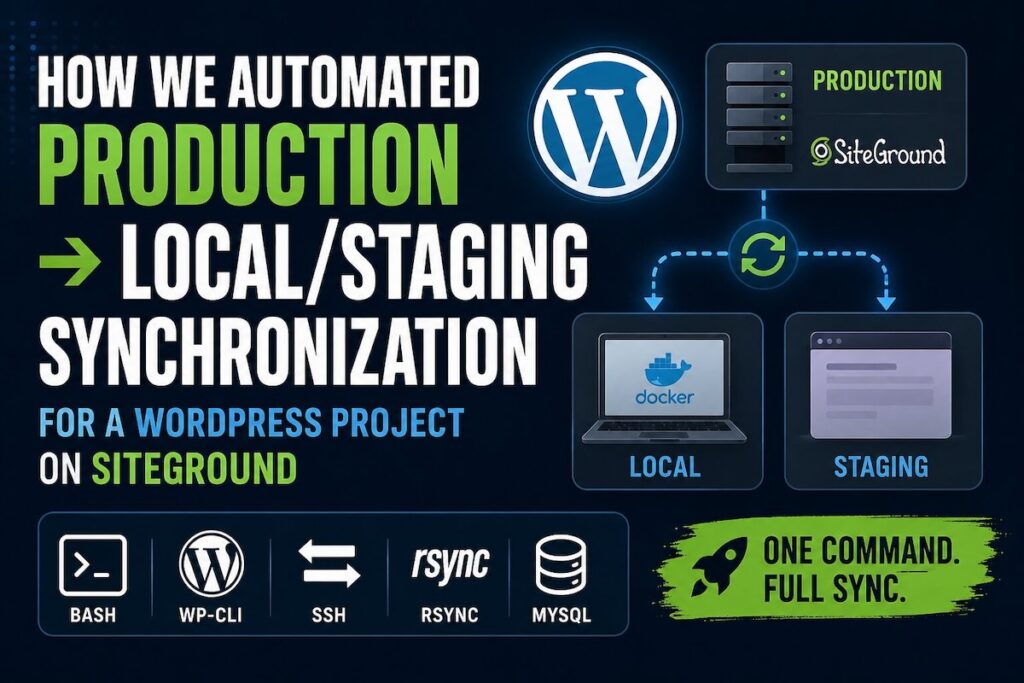
Instead of relying on phpMyAdmin exports, SFTP downloads, and manual imports, we built a fully automated synchronization workflow that refreshes local and staging environments directly from production using SSH, WP-CLI, rsync, and a collection of Bash scripts.
What previously took 20–30 minutes of repetitive work can now be completed with a single command.
The Real Cost of Manual Synchronization
Most WordPress teams have experienced some variation of this workflow:
- Export the production database through phpMyAdmin.
- Download the SQL file locally.
- Transfer uploads or plugins through SFTP.
- Import the database.
- Run search-replace operations.
- Clear caches.
- Hope nothing was missed.
Even when everything goes smoothly, the process introduces risk.
A forgotten URL replacement can break the site locally.
A missing plugin can produce errors that never occur in production.
An active SMTP plugin on staging can send emails to real customers.
An analytics integration can pollute production reporting data.
These small inconsistencies accumulate and create a growing gap between environments.
Eventually developers stop trusting their local setup and begin testing directly on production-like environments, slowing development and increasing deployment risk.
What We Built
To solve the problem, we created a collection of synchronization scripts that automate the entire workflow.
# Production → Local Docker environment
./scripts/sync-from-prod.sh

# Production → Staging
./scripts/sync-from-prod.sh --env=staging

# Sync only plugins
./scripts/sync-from-prod.sh --only=plugins
For staging environments hosted within the same SiteGround account, the process is even simpler:
bash ~/sync-prod-to-staging.sh
Because both environments reside on the same server, synchronization happens without transferring data through a developer machine.
What Each Sync Does
- Database export — compressed with gzip on the server (reduces transfer size 5–10×)
- Transfer — SCP for local, direct file copy for same-server staging
- Import — piped directly into MySQL, no intermediate local file
- URL replacement —
wp search-replaceacross all tables - Plugin sync —
rsynctransfers only changed files - Plugin state normalization — activates plugins matching prod state, deactivates environment-specific exceptions
- Cache flush — WP object cache + transients cleared
What Happens During a Sync
The synchronization pipeline performs several operations automatically:
Database Export
The production database is exported through WP-CLI and compressed with gzip directly on the server.
In practice, a 20–30 MB SQL dump often shrinks to only a few megabytes before transfer.
Database Transfer
For local environments, the dump is transferred through SCP.
For staging environments hosted on the same server, files are copied directly without network overhead.
Database Import
The SQL dump is streamed directly into MySQL, avoiding unnecessary temporary files.
URL Replacement
After import, WP-CLI performs a search-replace operation across all tables to update environment-specific URLs.
Plugin Synchronization
Plugin directories are synchronized using rsync, transferring only files that have changed!
Plugin State Normalization
Plugin activation states are aligned with production while respecting environment-specific exclusions.
Cache Cleanup
Object cache entries and transients are flushed automatically to prevent stale data.
The Hidden Complexity: WordPress Plugins
One of the biggest challenges in WordPress environment synchronization is that plugin state lives inside the database, while plugin code lives on disk.
Importing a production database without synchronizing plugin files creates inconsistencies immediately.
To address this, the workflow operates on two separate layers.
Layer 1: File Synchronization
Plugin files are synchronized from production using rsync.
This guarantees that every active production plugin exists locally.
Layer 2: State Normalization
We maintain environment-specific exclusion lists.
For local development, exclusions include plugins that actively interfere with development workflows:
- Security scanners
- Firewall tools
- SMTP integrations that send real email
For staging environments, the list expands to include:
- Analytics integrations
- Advertising pixels
- Marketing automation tools
- Live payment gateways
The goal is not to disable everything.
The goal is to mirror production as closely as possible while preventing actions that could cause real-world side effects.
SiteGround Specifics
SiteGround uses SSH key authentication. The workflow requires:
- Private key configured in
~/.ssh/configwith the correct host alias - Key added to
ssh-agentonce per session (ssh-add) - WP-CLI available on the server (SiteGround includes it by default on managed plans)
One useful SiteGround detail: when prod and staging are on the same hosting account (same server), rsync between them is essentially a local file copy — no network transfer, near-instant for plugin directories.
SiteGround’s staging tool in Site Tools only supports staging → production push (“Push to Live”). To refresh staging from production, the approach is either:
- Create a new staging environment (fresh copy from prod)
- Or run the sync script directly from the SiteGround SSH terminal
How Other Stacks Handle This
Laravel (PHP)
Laravel projects use a different model. The application code is version-controlled (including .env configuration per environment), so the “environment” problem is mostly about database and uploaded files.
Standard tools:
php artisan migrate— runs migrations, keeps DB schema in sync automaticallyphp artisan db:seed— seeds test data for localphp artisan storage:link— handles file storage.envfiles per environment, never committed to git
Key difference from WordPress: Laravel enforces separation between code and content. Database schema changes are tracked as migration files — you never need to copy the prod DB to get the right schema. Only content data needs syncing when testing with real data.
For content sync, teams typically use:
ssh prod "mysqldump -u user -p db" | mysql local_db
Plus rsync for storage/app/ uploads — essentially the same approach we use.
Node.js / Next.js
Headless or decoupled architectures separate the data layer entirely:
- Content lives in a CMS (Contentful, Sanity, Strapi) with its own API
- Environment differences are handled via API keys in
.env - No database sync needed — dev environment hits a sandbox or staging API
This is the cleanest model: environments differ only in which API endpoint they point to. No file transfers, no plugin states, no URL replacements.
Shopify
Shopify takes environment management out of the developer’s hands entirely. There is no “local Shopify” — development happens against a development store via the Shopify CLI:
shopify app dev
Theme changes sync to a development store in real time. No database, no plugin files, no server configuration.
Craft CMS / Statamic
Similar to Laravel — migrations for schema, content sync via dedicated tools:
- Craft:
./craft migrate/all+ content export/import via element API - Statamic: flat-file option means content is in git — no sync needed at all
Drupal
Drupal has one of the most mature environment sync ecosystems:
- Configuration Management — all site config exported to YAML files, committed to git, deployed with
drush config:import - Content sync —
drush sql:sync @prod @localhandles DB copy + URL replacement automatically - Drush aliases — define environments in a config file, run commands against any environment remotely
Drupal’s drush sql:sync is essentially what we built manually for WordPress.
Comparison Table
| Stack | DB Sync | Plugin/Module Sync | URL Replacement | Config Management |
|---|---|---|---|---|
| WordPress | Manual or scripted | Manual rsync | wp search-replace | wp-config.php per env |
| Laravel | artisan migrate (schema only) | Composer | Not needed | .env per env |
| Drupal | drush sql:sync (built-in) | Composer | Drush handles it | Config YAML in git |
| Shopify | Not applicable | Not applicable | Not applicable | CLI per store |
| Next.js/Headless | Not applicable | npm | Not applicable | .env per env |
| Statamic (flat-file) | Not applicable | Composer | Not applicable | Files in git |
Lessons Learned
- After implementing and using the workflow repeatedly, several patterns became obvious.
- Compress before transferring. Database exports frequently shrink by 80–90%.
- Use same-server copies whenever possible. They are dramatically faster than network transfers.
- Treat plugin state as data. Synchronizing files alone is not enough.
- Mirror production aggressively. The more environments differ, the less reliable testing becomes.
- Invest in SSH automation early. Password prompts are the enemy of repeatable workflows.
- Always use WP-CLI for URL replacement. Serialized data makes manual SQL updates dangerous.
What’s Next (Future Improvements)
- The workflow already saves significant time, but several improvements are still planned:
- Automatic SSH key loading through macOS Keychain.
- Plugin version mismatch reporting.
- WP-CLI alias support for cleaner remote command execution.
- Additional validation checks before synchronization begins.
- The long-term goal is simple: make refreshing a WordPress environment as effortless as running a single command, while keeping local and staging environments as close to production as possible.
Tools used: bash, WP-CLI, rsync, gzip, SCP, Docker Compose, Claude AI
This workflow was implemented on a SiteGround-hosted WordPress project. Choosing the right hosting provider can significantly impact deployment, staging environments, backup strategies, and development workflows. You can also explore my complete guide to WordPress hosting recommendations for developers and business owners.
WordPress Hosting Recommendations Based on Real Experience